# GoSentry
GoSentry is a cross-platform desktop scheduler. It provides a native GUI for
creating, grouping, pausing, running, and monitoring scheduled shell commands.
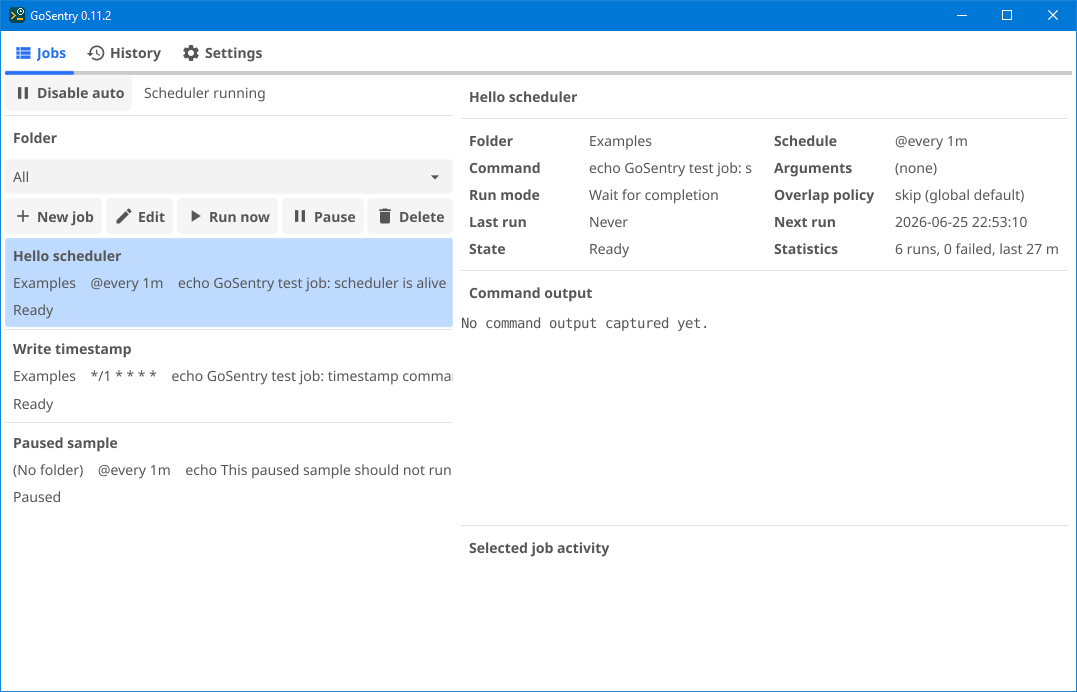
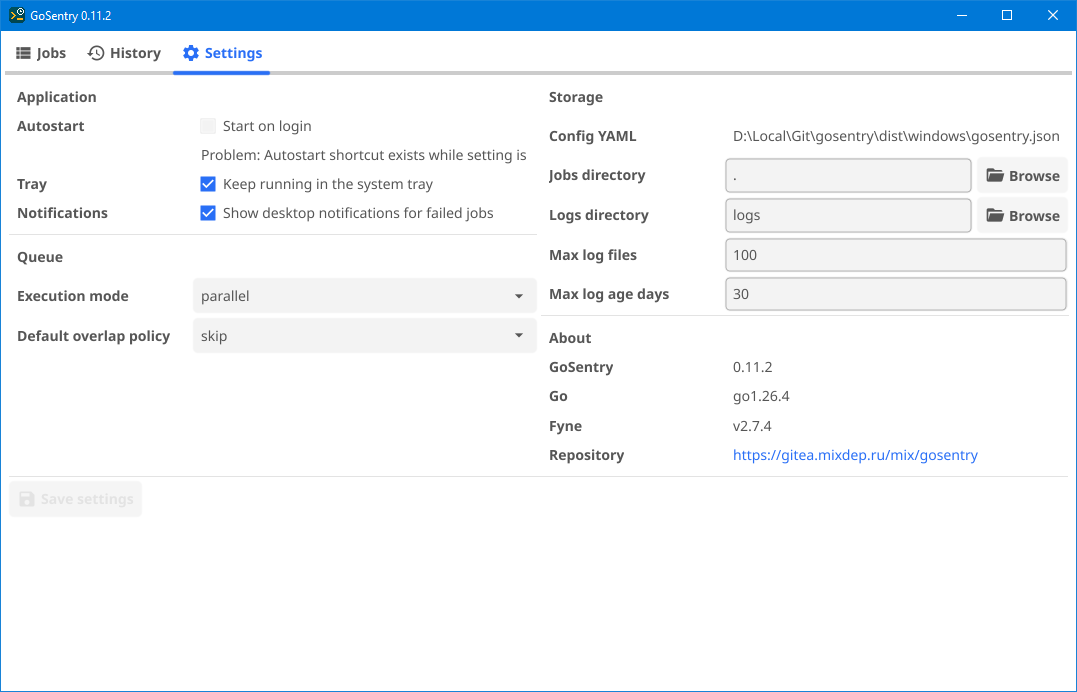
## Screenshots
Jobs tab — job list with details panel and run statistics.
Settings tab — application, queue, storage, and version info.
## Features
- Native desktop GUI built with [Fyne](https://fyne.io/).
- Job definitions stored in a clean, hand-editable `jobs.json`.
- `@every` intervals and standard 5-field cron expressions.
- Manual and scheduled command runs.
- Parallel or sequential execution mode; configurable overlap policy (skip or queue).
- Per-run `.log` files with stdout/stderr capture.
- Log cleanup by maximum file count and maximum age.
- Global pause/resume for scheduled job execution (manual runs remain available).
- Desktop notifications on job failure.
- Windows tray icon: left-click to show the window, right-click for the menu.
- Autostart on login (Windows shortcut; Linux XDG desktop entry).
## Platforms
GoSentry is built and tested on **Windows** and **Linux**:
| Platform | Status | Notes |
|----------|--------|-------|
| Windows | Supported | Tray icon, autostart shortcut (`.lnk`), desktop integration. |
| Linux | Supported | Autostart via XDG desktop entry; desktop integration on X11/Wayland. |
| macOS | Not supported | The Fyne GUI may build, but autostart and desktop integration are not implemented. |
## Documentation
- [Changelog](docs/CHANGELOG.md) — record of notable changes by version
- [Roadmap](docs/ROADMAP.md) — planned work larger than a single bug fix
- [Architecture](docs/ARCHITECTURE.md) — component interaction model
- [Standards](docs/STANDARDS.md) — quality rules and intentional behavior
- [Development](docs/DEVELOPMENT.md) — build instructions, project layout, dependencies
- [Tests](docs/TESTS.md) — test suite layout and how to run it
- [Performance](docs/PERFORMANCE.md) — measured performance findings
## Storage
GoSentry stores its files next to the executable by default, making it a
portable application: moving the program folder also moves its configuration.
`gosentry.json` stores application settings:
```json
{
"jobs_dir": ".",
"logs_dir": "logs",
"max_log_files": 100,
"max_log_age_days": 30,
"keep_running_in_tray": true,
"notify_on_failure": true,
"execution_mode": "parallel",
"overlap_policy": "skip"
}
```
`jobs.json` stores job definitions:
```json
{
"jobs": [
{
"id": 1,
"name": "Hello scheduler",
"folder": "Examples",
"schedule": "@every 1m",
"command": "echo GoSentry test job: scheduler is alive",
"enabled": true
}
]
}
```
`jobs_dir` is the directory GoSentry reads `jobs.json` from. The default `"."`
means the same folder as the executable. An absolute path can be used when jobs
should live elsewhere, such as a shared network drive.
`logs_dir` is relative to the program folder when it does not start with a
drive letter or `/`.
Command output is written to separate files under `logs_dir`. File names
include the run timestamp and job name:
```text
20260614-224306_Hello_scheduler.log
```
## Schedules
Interval schedules using Go duration syntax:
```text
@every 10s
@every 5m
@every 1h30m
```
Standard 5-field cron expressions:
```text
*/5 * * * * every five minutes
0 2 * * * every day at 02:00
30 9 * * 1-5 weekdays at 09:30
```
## Using The App
1. Start GoSentry.
2. Use **New job** to create a scheduled command.
3. Set **Schedule**, **Command**, optional **Arguments**, **Folder**, and **Enabled**.
4. Use **Run now** for a one-off manual run without waiting for the schedule.
5. Use **Pause** on a single job to suspend it without deleting it.
6. Use **Pause all** as a global stop switch for all scheduled runs.
7. Open **History** to see past runs, their trigger (`Manual`, `Schedule`, or `UI`), state, and log file.
8. Open **Settings** to change storage directories, log cleanup limits, queue behavior, and notifications.
Changing `jobs_dir` in Settings saves the current job list to the new directory.
The **Start on login** checkbox shows an `OK` or `Problem` status. Saving with
it enabled writes an autostart entry using the current executable path.
Autostart entries include `--start-in-tray` so scheduled jobs run after sign-in
without opening the main window.
## Queue Settings
Two settings in the **Queue** group of the Settings tab control how simultaneous
and overlapping runs are handled.
**Execution mode** — applies when multiple jobs become due at the same tick:
| Value | Behaviour |
|-------|-----------|
| `parallel` (default) | All due jobs start at the same time. |
| `sequential` | Due jobs are started one after another, in the order they appear in the list. |
**Overlap policy** — applies when a job's next scheduled run fires while its
previous run is still active:
| Value | Behaviour |
|-------|-----------|
| `skip` (default) | The new run is discarded; the running instance continues. |
| `queue` | The new run is held and starts immediately after the current run finishes. |
## Notifications
When **Notify on failure** is enabled in Settings, GoSentry sends a desktop
notification whenever a scheduled or manual run exits with a non-zero exit code.
The notification shows the job name and the exit code.
## Autostart
GoSentry is a user desktop application, not a system daemon, so autostart is
configured per user.
Linux:
```ini
# GoSentry writes an XDG Autostart desktop entry when Start on login is enabled.
~/.config/autostart/gosentry.desktop
[Desktop Entry]
Type=Application
Name=GoSentry
Exec=/opt/gosentry/gosentry-0.9.0-linux-amd64 --start-in-tray
Terminal=false
```
Windows:
```text
# GoSentry writes a shortcut to the current user's Startup folder.
# A .lnk stores the executable path as TargetPath and --start-in-tray as
# Arguments, so paths with spaces do not need fragile command-line quoting.
%APPDATA%\Microsoft\Windows\Start Menu\Programs\Startup\GoSentry.lnk
```
## Troubleshooting
### Windows, VirtualBox, RDP, And OpenGL
GoSentry uses [Fyne](https://fyne.io/), and Fyne uses GLFW/OpenGL to create the
desktop window. In a Windows virtual machine, especially when accessed through
RDP inside VirtualBox, the available video driver can fail OpenGL initialization.
Typical error:
```text
Fyne error: window creation error
Cause: APIUnavailable: WGL: The driver does not appear to support OpenGL
```
Known workaround:
1. Download a Windows Mesa build from
[mesa-dist-win](https://github.com/pal1000/mesa-dist-win/releases). Use the
archive named like `mesa3d--release-mingw.7z` — this matches the
MSYS2 GCC toolchain used to build GoSentry. The `devel`, `debug-info`,
`tests`, and checksum files are not needed.
2. Open the archive and use the `x64` build.
3. Copy the Mesa OpenGL DLL files from `x64` into the same directory as the
GoSentry `.exe`:
```text
dist\windows\
gosentry-0.9.0-windows-amd64.exe
opengl32.dll
...
```
Mesa's software OpenGL implementation lets the Fyne window start even when the
VirtualBox/RDP driver does not provide usable OpenGL.
## Development assistance
Parts of this project were developed with assistance from [Cursor](https://cursor.com/) AI (Composer agent)
and [Claude Code](https://claude.com/claude-code).